

{{ question.title }}
{{ question.category}} / {{ question.id }}
About
- You can use “Web print service” when you use printer.
- You need CU_ID to log in or to check your remaining points.
Nagoya Campus
- Personal-study room
- Library service center
- Nagoya library
- Academic Affairs Center
- Law literature center
- Annex Lounge
Toyota Campus
- Toyota Library
- Lounge
About Printing Point
When you used A4 sized paper and printed in monochrome, 1 point is consumed. If you used an A3 sized paper or printed in color, 5 points per a sheet of paper are consumed.
You are given 1000 points for a year. When you used up the points, you can buy the additional points. You cannot carry over points to the next fiscal year.
How to add points
You can add 50 points (500JPY) at a time. Purchase a certificate stamp at the certificate stamp issuing machine, affix it to the “Additional Printing Point Application Form” available at the Information Center service desk, and submit the application.
Stamp issuing machine
Nagoya Campus - Building No.5, 1st floor / Toyota Campus - Building No.1, 1st floor
☆How to use web printer
Please make sure you are connected to the university’s Wi-Fi beforehand.
-
Open ALBO and move to student menu.Please set the language to Japanese instead of English And select “Information center services” from student menu.
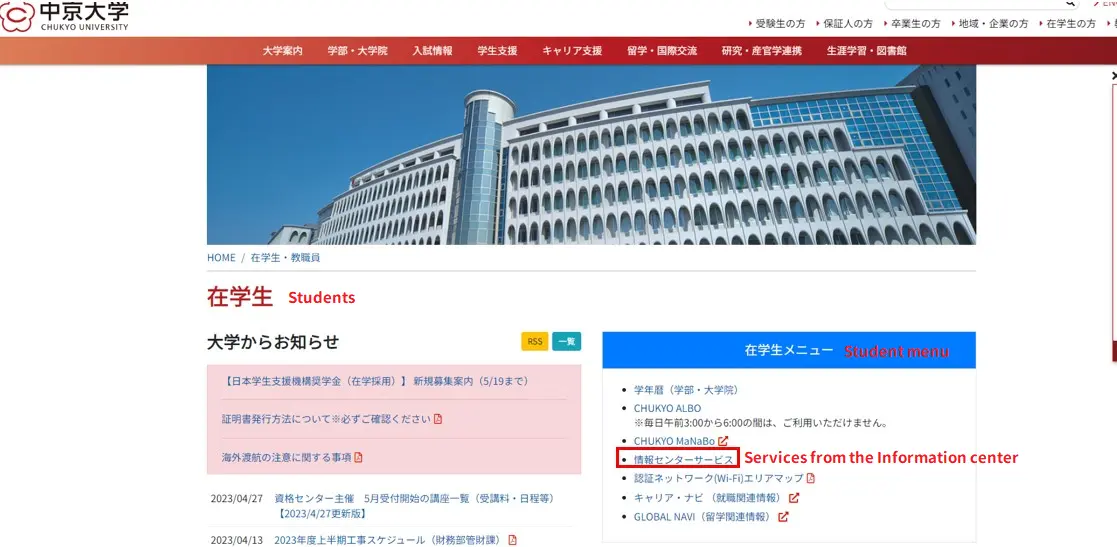
-
Select “Web upload(Nagoya)”
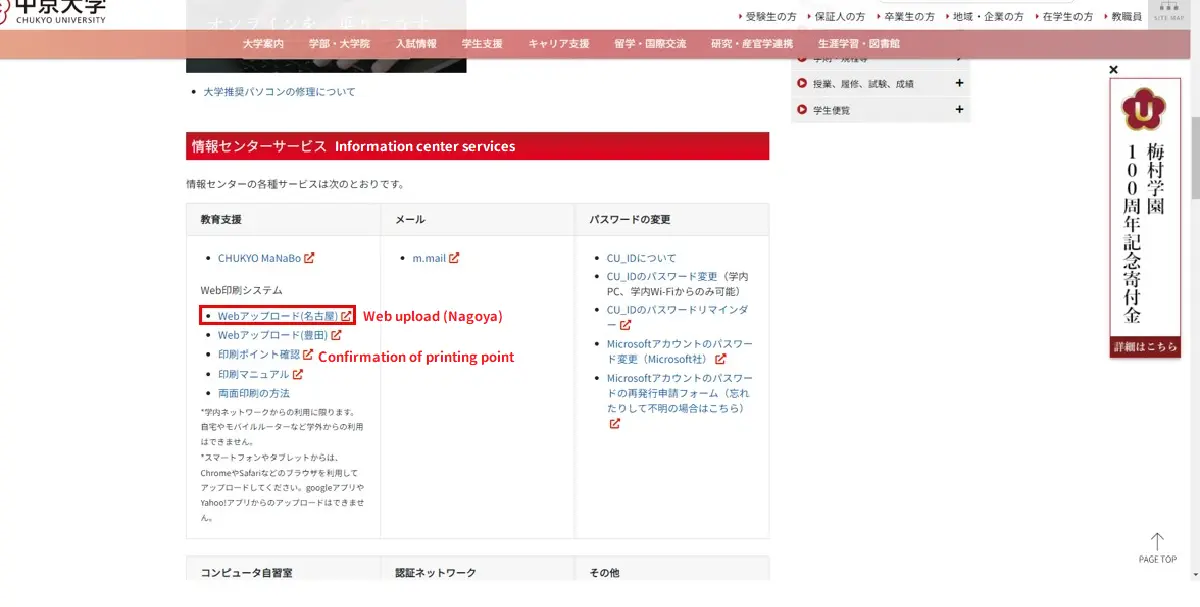
-
The login screen will change, so enter your student number and CU_ID password that same password to log in to ALBO.
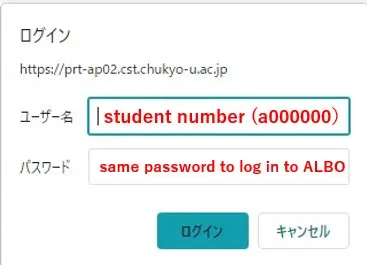
-
You can change language from top right of screen.
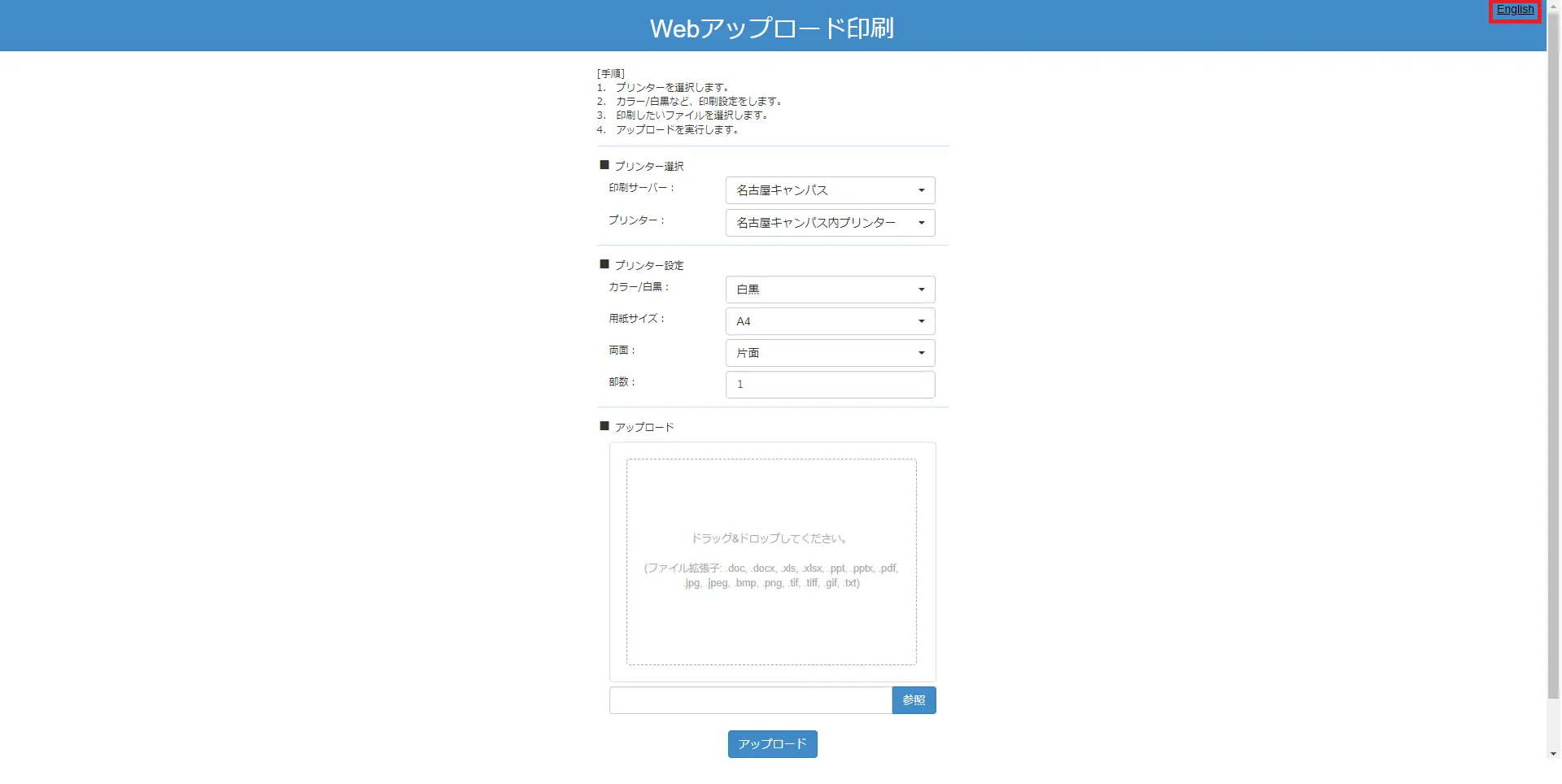
-
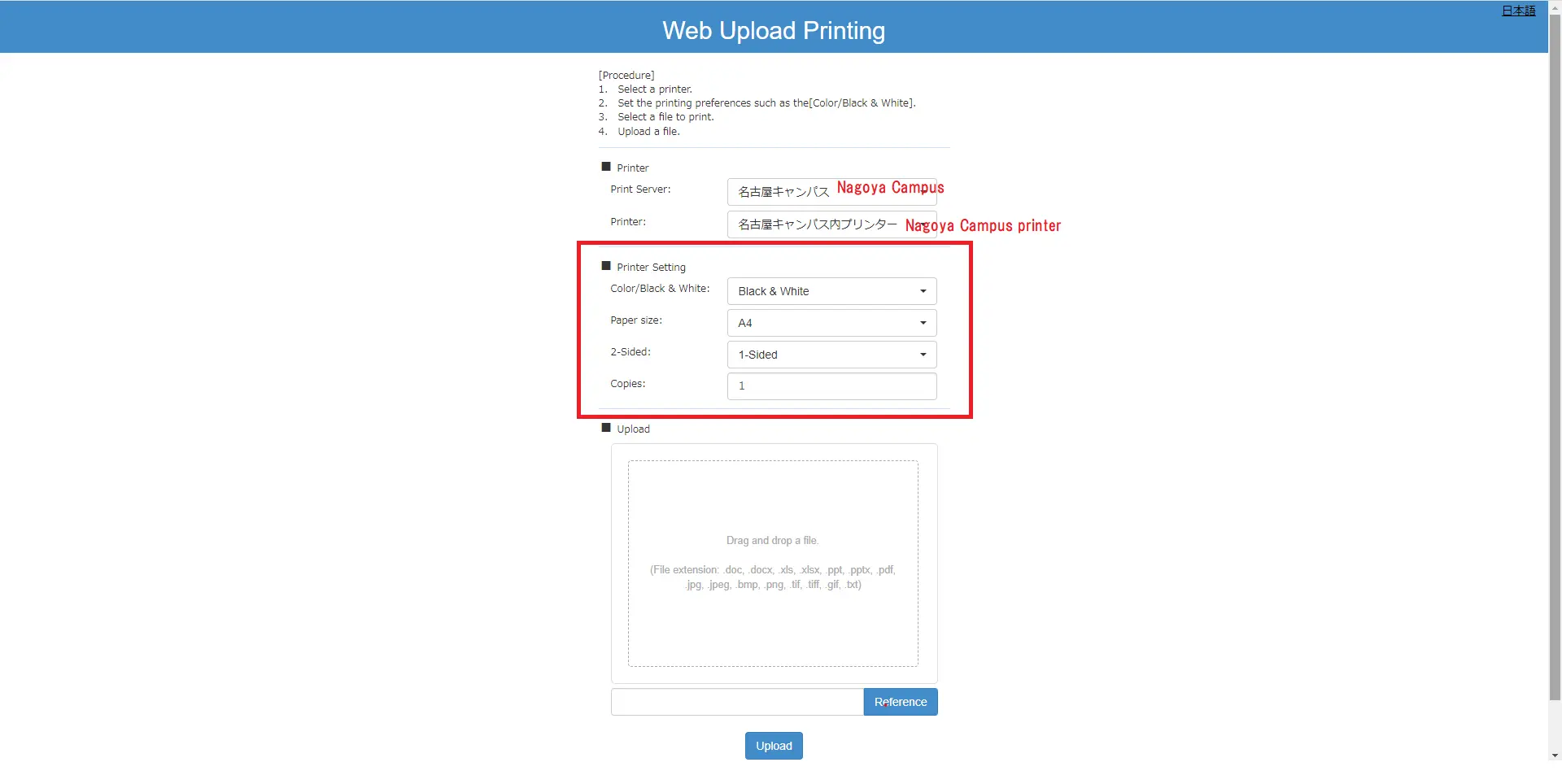
Change the settings of printing before pressing upload button.
-
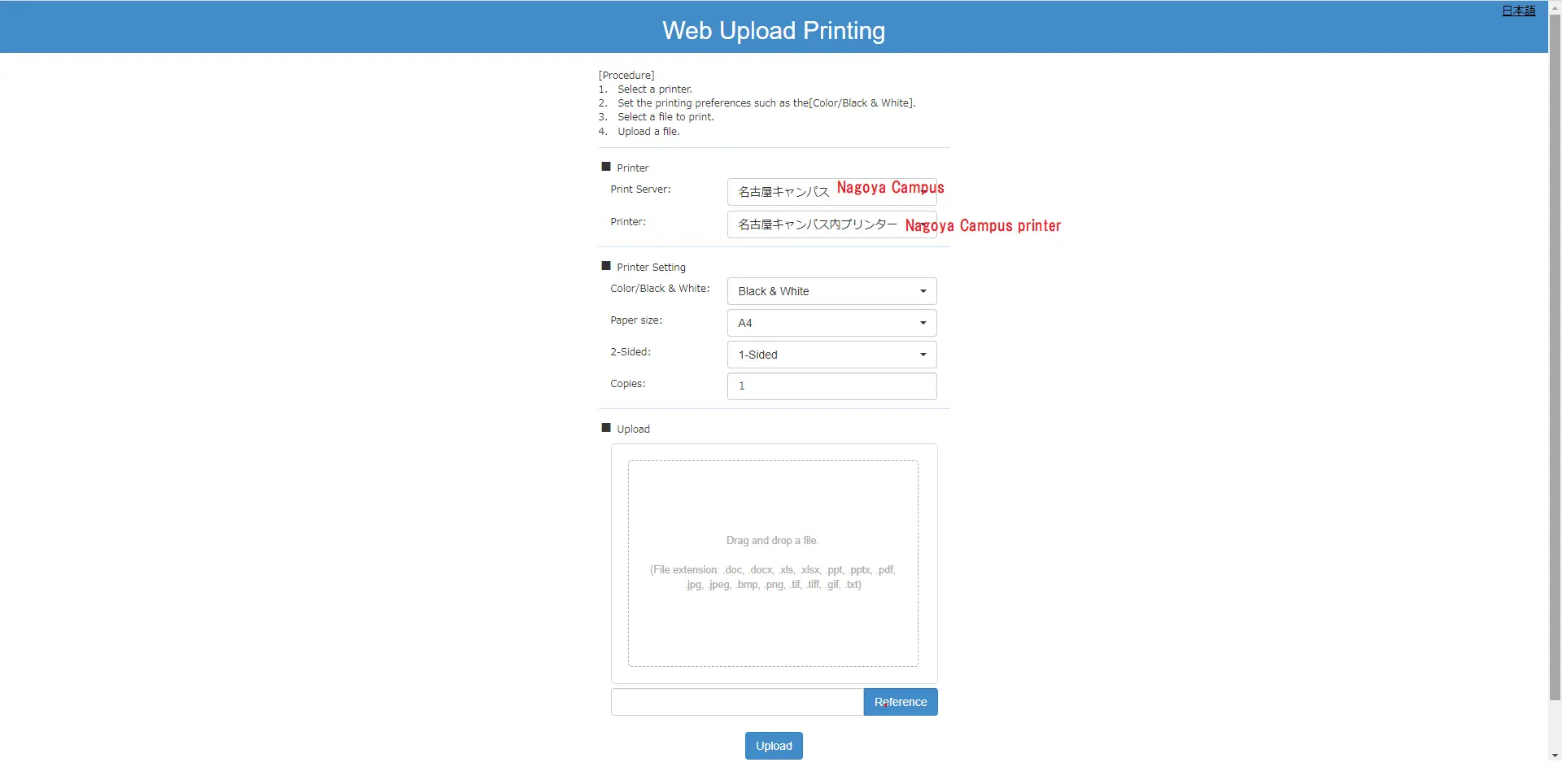
Check the print server is “Nagoya Campus” and the printer is “Nagoya Campus Printer”. Please select file from reference and press upload button.
This completes the work before copying.
☆Let's use printer at Chukyo university!
After completing the web upload, you can print using printers at Chukyo university.
~Locations of the Printers~
- Personal- Study Room(1st floor, Building No.0)
- Library Service Center (3rd floor, Building No.0)
- Nagoya Library (1st floor, Building No.1)
- Academic Affairs Center (1st floor, Building No.5)
- Law Literature Center (Building No.9)
- Annex Lounge (2nd floor, Building No.16)
-
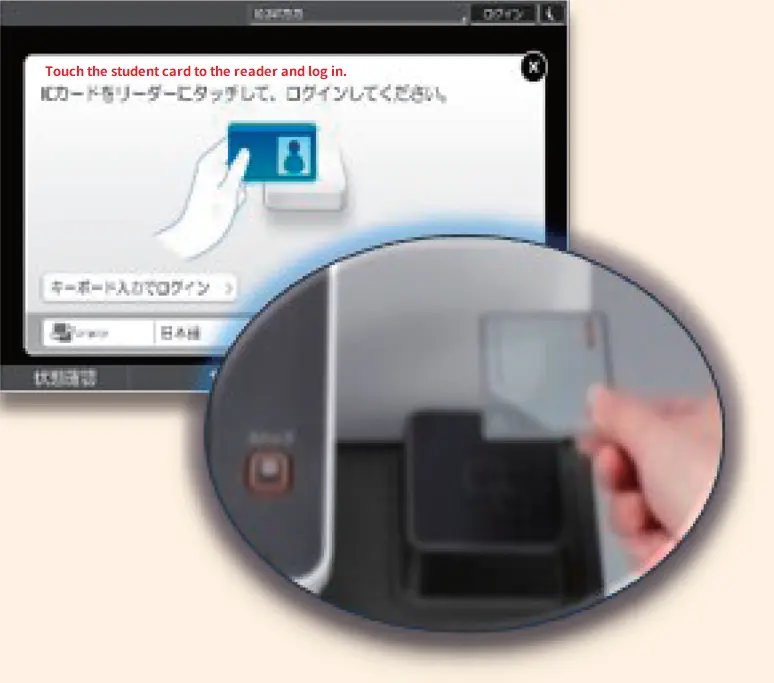
Touch the student card to the reader and log in.
-
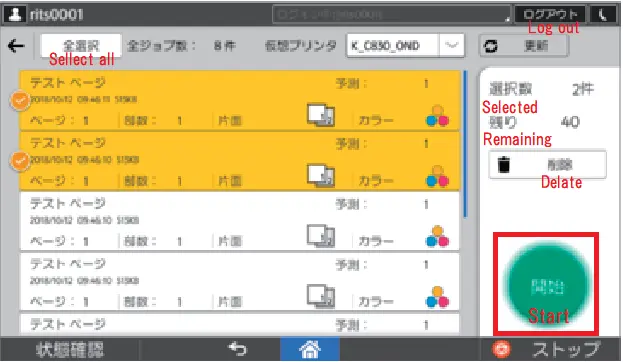
Choose all the date you want to print and tap a green button.
-
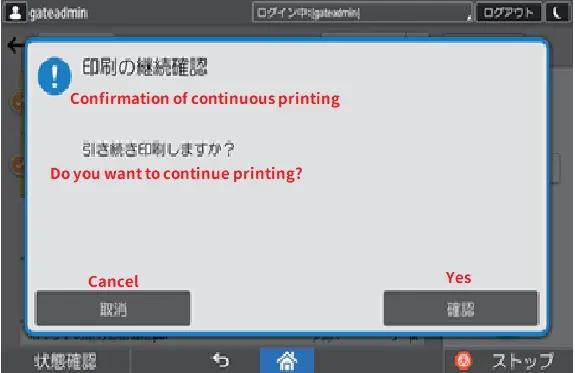
Tap “Cancel” at Confirmation screen if you finish printing. When you continue printing, choose “Yes” and go back to 2.
Done! Don't forget anything!
関連する質問
-
{{ data.title }}
{{ data.tag }}